Spreadsheet quality
How to keep leading zeros and serial numbers in Excel
Avoid losing leading zeros or changing long identifiers when you move label data into a spreadsheet. Download CSV and Excel specimens to check your import.
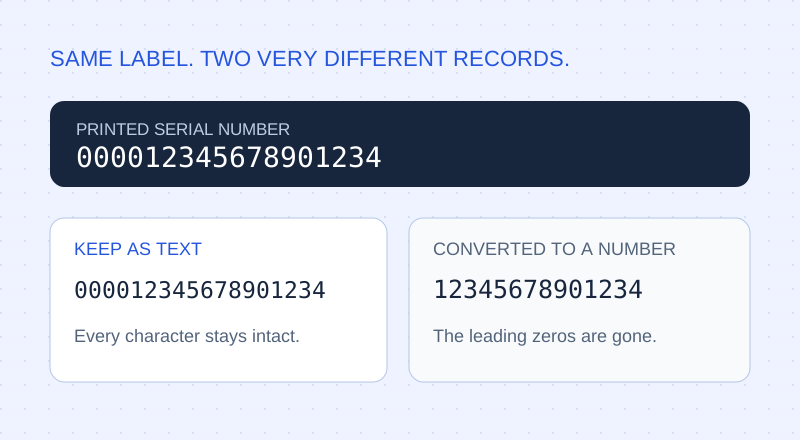
An identifier is text, even when it contains only digits
Your label says 00018427. Your spreadsheet says 18427. The photo may have been read correctly: Excel can interpret a digit-only identifier as a number and remove its leading zeros. Store serial numbers, SKUs and part numbers as Text; reserve numeric columns for quantities and measurements.
The strings below are deliberately constructed import tests, not identifiers read from our sample photos. Use them to check that your spreadsheet preserves characters before you import real records.
| Test identifier | Problem to catch | Check |
|---|---|---|
| 00018427 | Zeros disappear | Still eight characters |
| 1234567890123456 | Digits change or scientific notation appears | Compare every digit |
| 03-04 | Converted into a date | Keep the literal identifier |
| O01-I8 | O/0 and I/1 confusion | Keep every character |
Try the CSV and text-cell workbook
Download both specimens and compare the identifier columns. The Excel workbook stores the test identifiers as text cells. The CSV contains their original characters but has no cell-type information, so your import settings matter.
A successful check leaves 00018427 at eight characters, retains all sixteen digits of 1234567890123456, and leaves 03-04 as a literal string. The workbook is a useful reference for what those values should look like after import.
The safe CSV import, step by step
CSV stores values without spreadsheet cell types. Excel can interpret those values when opening a file. Importing gives you a chance to choose the types before loading the data; menu names vary by Excel version.
- Keep the original CSV unchanged as a reference.
- In a supported desktop version of Excel, use Data → From Text/CSV rather than simply double-clicking the file.
- Use the import or transform controls to set serial number, part number and SKU columns to Text before loading. If the preview has already converted them, correct the conversion step or restart the import from the original file.
- Compare a leading-zero identifier and a long identifier with the original, then save the checked result as an .xlsx workbook.
Review recognition and spreadsheet conversion separately
First compare TagQuill’s extracted record with the label photograph. Then compare the exported identifier with that reviewed record. This separates an image-reading mistake from a spreadsheet import mistake.
Excel numeric cells have 15 significant digits of precision. A 16-digit identifier therefore needs Text storage before conversion. Formatting a damaged value afterwards cannot recover its original digits; return to the unchanged source file. Never guess how many zeros to add.
Use identifiers consistently when matching rows
Keep serial number and part number in separate columns. Two units may share a part number while having different serial numbers. A duplicate part number is therefore not, by itself, a duplicate asset.
Preserve the original identifier before applying any cleaning rule. Removing spaces or punctuation may help a particular importer, but it can also change a legitimate part number. Test your destination’s expected format with a few reviewed rows before importing a large file.
Reference: Microsoft: keeping leading zeros and large numbers.