Capture & export
Scan product labels to Excel: photos into inventory rows
Turn product and equipment label photos into Excel rows. See a real label, download its reviewed CSV or workbook, and reuse your export columns.
Already have a photo of a table?
If your image already contains a table, Excel’s Data from Picture can turn that table into cells for you to review. A product label is a different starting point: its details need to become named fields in a consistent inventory row. This guide follows that label-to-row workflow.
A real label, mapped to an inventory row
Start by deciding what each row represents: one product type, one package or one individual asset. For a product list, useful columns include item, manufacturer, model, part number and printed specifications.
Compare the physical label photo below with the reviewed sample row. The downloads use the same fields. An identifier that is not printed stays blank; a model or product code is not a substitute for a missing serial number.
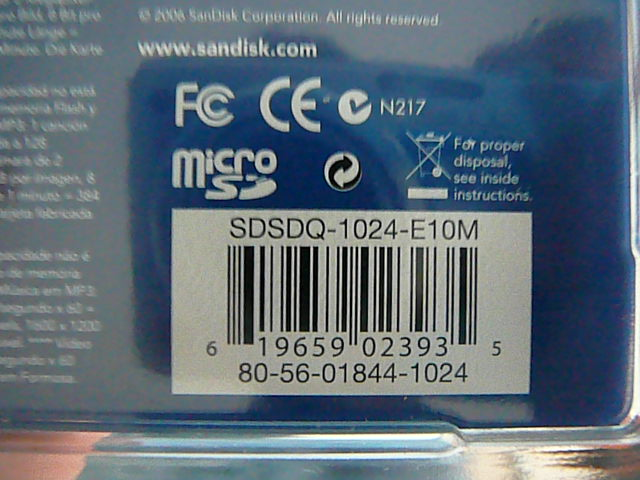
Photo source: Photo: ZXing test collection · Apache 2.0.

A real product package, ready for a spreadsheet
- Product
- microSD
- Manufacturer
- SanDisk Corporation
- Printed product code
- SDSDQ-1024-E10M
- Additional printed code
- 80-56-01844-1024
- Printed UPC
- 619659023935
- Part number / serial number
- Not labelled in this view; left blank
Capture on your phone, review on your computer
Open TagQuill on your computer and capture from your phone browser—no phone app to install. The workspace QR code pairs the two screens so your photos arrive in the inventory you are working on.
- Sign in on your computer and choose Scan with phone. Scan the workspace QR code using your phone.
- Allow camera access. Photograph the label straight on, with all the text inside the frame. Move the light or camera if glare hides a character.
- Wait for the photo to arrive and extraction to finish. Alternatively, upload existing JPG, PNG or WebP photos.
- Compare the record with its source photo. Check the manufacturer, model and identifiers before accepting the data. Correct mistakes or take a clearer photo when text is unreadable.
Export only the columns you will use
Choose CSV or Excel (.xlsx), or build a custom export layout. You can choose, rename and reorder fields, then save the layout for the next batch. An existing CSV header can also provide the starting column names.
Try opening the sample workbook above before capturing a full batch. Check the column names, units and identifiers in the destination you will actually use. For a CSV, set identifier columns to Text during import so leading zeros stay intact.
Open the downloaded workbook in Excel, or import the file into Google Sheets. This is a file handoff: changing a record later in TagQuill does not update a spreadsheet you already downloaded. Keep one agreed master file to avoid competing versions.
Fix the photo before fixing the spreadsheet
Start with three labels: a clean one, a glossy one and one with small print. If a character is unclear, move closer or change the angle and photograph it again while the item is in reach. A quick capture check is easier than finding the right box later.
A label photo does not establish stock quantity, warehouse location or whether an item is still in service. Add and verify those operational facts separately. TagQuill extracts visible label information; it does not count unlabelled stock or track stock movements.
Reference: Microsoft: insert data from a picture of a table.