Stock labels to Excel
Turn stock labels into a spreadsheet.
For warehouses, stockrooms and spare-parts lists: photograph each item's label with your phone. TagQuill reads the printed product details into rows you can review and export to Excel or CSV. Add counted quantities and shelf locations in your spreadsheet.
50 free credits · No card needed · No app to install
Capture the details that identify your stock
Read the printed text on packaging and spare-part labels without copying each field by hand. Check the results against the photo before adding them to your stock sheet.
- Product and manufacturer
- The product name and maker visible on the label.
- Printed codes and part numbers
- Keep printed identifiers separate, including part numbers when labelled.
- Serial number
- For individually identified items, when a serial number is printed.
- Printed specifications
- Sizes, ratings and other visible details, with their units.
From a real package label to a spreadsheet row
Compare this product-label photo with its reviewed fields, then download the same row as CSV or Excel. The example contains printed label details; quantities and locations are added by your team.
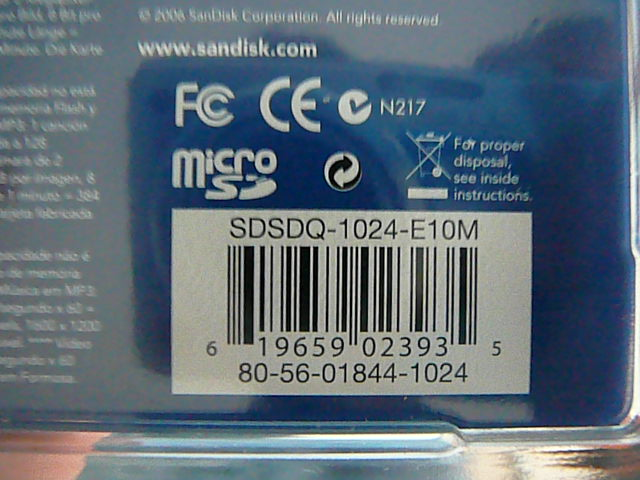
Photo source: Photo: ZXing test collection · Apache 2.0.

A real product package, ready for a spreadsheet
- Product
- microSD
- Manufacturer
- SanDisk Corporation
- Printed product code
- SDSDQ-1024-E10M
- Additional printed code
- 80-56-01844-1024
- Printed UPC
- 619659023935
- Part number / serial number
- Not labelled in this view; left blank
How it works
Connect your phone
On your computer, choose Scan with phone and scan the QR code. The camera opens in your phone's browser. No app to install.
Photograph each item's label
Keep printed text sharp and in frame. You can also upload existing JPG, PNG or WebP photos. A label photo identifies an item; it does not count the stock on your shelf.
Review and export your rows
Check each field against the photo, choose your columns and download Excel or CSV. Add physically checked quantities and locations in your spreadsheet.
Questions
Does TagQuill count stock or track stock movements?
No. It captures printed label details. Your team counts the physical stock and adds quantities, locations and check dates in the spreadsheet. Photo count is not stock quantity.
Can I use my existing stock spreadsheet?
Yes. Choose, rename and reorder export columns, or import headings from a CSV and save the layout. Open the exported file in Excel or import it into Google Sheets. TagQuill does not sync stock levels or update a warehouse system automatically.
Does it look products up from a barcode?
No. It reads text visible on the label, including printed code digits. It does not search a barcode or product database or fill in details that are missing from the photo.
Can I try it before paying?
Yes. Create an account for 50 free credits with no card needed. One processed item uses one credit. Reviewing and exporting saved records use no extra credits.